Entra ID Privileged Access: Practical PIM Implementation
There’s this concept in decision theory called satisficing. It’s a combination of “satisfy” and “suffice” and it means finding a solution that’s good enough rather than optimal. Herbert Simon coined it in the 1950s and I think it perfectly describes the state of privileged access in many organizations today. Please note my usage of “many” in this case refers to my own experience, discussing with peers and generic observations. It’s circumstantial, because as I’ve stated many times, me no science-guy. Anyway.
So why does it feel like good enough is an established standard? Not because they’ve made a conscious decision to satisfice. But because the alternative, implementing every best practice from every framework, is so overwhelming that most companies just don’t do anything.
This post is an attempt at the middle road, ish. A potentially realistic take on privileged access in Entra ID, Azure and Microsoft 365 that you can actually implement without a 200-page design document and a team of 15 IAM-specialists.
There’s this phrase that has been powering the consultancy-business since its inception:
It depends
It will come up. A lot. Because what you choose to do will depend on your threat model, your risk appetite, what you’ve already done and what you can afford to do. But the core idea is pretty simple, don’t let perfect be the enemy of 95% coverage. Don’t let that one person travelling to that one country stop you from blocking access from that country for everyone else, and handling an exception the few times it comes up.
How access actually works
Before we get into the how, let’s make sure we agree on the what. No matter if we’re talking about Entra ID roles, Azure RBAC or Microsoft Graph permissions, the fundamental concept is the same in my mind:
A principal is given a role on a scope.
flowchart LR
    P["👤 Principal"]:::principal --> R["🔑 Role"]:::role --> S["📦 Scope"]:::scope

    classDef principal fill:#4a90d9,color:#fff,stroke:#2d6cb4
    classDef role fill:#d4a847,color:#fff,stroke:#b08a2e
    classDef scope fill:#5ba55b,color:#fff,stroke:#3d7a3d
A principal can be a user, a group, a service principal, a managed identity, or any other identity type (including agent identities). The role defines what actions that principal can perform. The scope defines where those actions apply.
I’ve used this concept before in explaining Azure Lighthouse in my Azure Lighthouse 101 post, which is still relevant and only underlines the points made in this particular post.
How this plays out across Entra ID, Azure and Graph
The interesting part is that while the model is the same, the scope works differently depending on where you are.
flowchart LR
    EP["👤 User"]:::principal --> ER["Exchange Admin"]:::role --> ES["Entire tenant"]:::scope

    classDef principal fill:#4a90d9,color:#fff,stroke:#2d6cb4
    classDef role fill:#d4a847,color:#fff,stroke:#b08a2e
    classDef scope fill:#5ba55b,color:#fff,stroke:#3d7a3d
flowchart LR
AP["👤 User"]:::principal --> AR["Key Vault Secrets User"]:::role --> AS["Key Vault X"]:::scope
classDef principal fill:#4a90d9,color:#fff,stroke:#2d6cb4
classDef role fill:#d4a847,color:#fff,stroke:#b08a2e
classDef scope fill:#5ba55b,color:#fff,stroke:#3d7a3dflowchart LR
GP["🤖 App"]:::principal --> GR["Mail.Read"]:::role --> GS["All users / specific user"]:::scope
classDef principal fill:#4a90d9,color:#fff,stroke:#2d6cb4
classDef role fill:#d4a847,color:#fff,stroke:#b08a2e
classDef scope fill:#5ba55b,color:#fff,stroke:#3d7a3dIn Azure RBAC, scope is explicit and granular. You assign a role at a management group, subscription, resource group or resource. A Key Vault Secrets User on Key Vault X can only read secrets from that specific Key Vault.
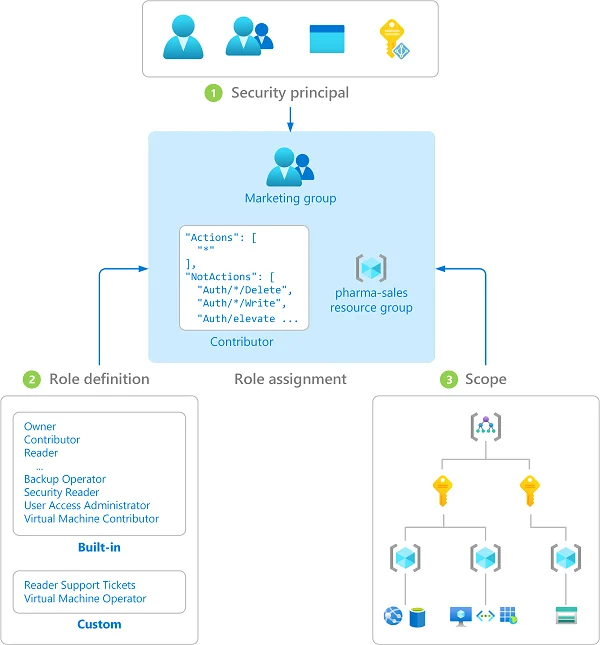
In Entra ID, scope is mostly implicit. When you assign someone the Exchange Administrator role, they’re the Exchange Administrator for the entire tenant. There’s no “Exchange Administrator but only for these mailboxes” (yet). Administrative units can scope some roles, but most Entra ID roles are tenant-wide.
For Microsoft Graph API permissions, it’s a similar implicit scope. An application with Mail.Read (application permission) can read mail for all users. You can limit this with application access policies, but by default the scope is broad.

Even if the scope is implicit, the core idea/concept still remains the same across all access assigned via Entra as an IdP.
Comparing identity types
Alright, let’s compare how this looks for a human identity vs a workload identity:
Human (Entra ID role):
A user admin@infernux.no is assigned the User Administrator role in Entra ID. This gives them the ability to manage all users in the tenant, reset passwords, manage group memberships and more.
Workload identity (Graph API permission):
A service principal for an automation app is granted User.ReadWrite.All as an application permission via admin consent. This gives the app the ability to read and write all user profiles in the tenant without any user being signed in.
Both are principals with roles on scopes. The difference is the type of principal and how the access is governed. The human can be covered by conditional access, PIM activation and MFA. The workload identity needs different controls such as certificate-based authentication, short credential lifetimes, and ideally managed identities where the platform manages the credentials for you.
Agent identities are emerging as a third category. For both agent identities and workload identities, we could also apply conditional access policies. Workload identities require separate licensing:
Workload Identities Premium licenses are required to create or modify Conditional Access policies scoped to service principals. In directories without appropriate licenses, existing Conditional Access policies for workload identities continue to function, but can’t be modified. For more information, see Microsoft Entra Workload ID.
For agent identities conditional access is still in preview, so how licensing will work for this is not certain. For now though, it’s free.
One user or two?
First real decision. Do your admins use the same account for email and Azure portal, or do they get a separate admin account?
The answer is two accounts. One for email/teams etc, one for admin portals. I know it’s a bit annoying, but c’est la vie as the french (hopefully) say.
flowchart TB
    subgraph normal["Normal account"]
        direction TB
        N["user@infernux.no"]:::normal
        NA["Email, Teams, SharePoint"]:::normaluse
        N --> NA
    end

    subgraph admin["Admin account"]
        direction TB
        A["adm.user@infernux.no"]:::admin
        AA["Azure Portal, Entra, DevOps"]:::adminuse
        A --> AA
    end

    normal ~~~ admin

    subgraph cap["Conditional Access"]
        direction TB
        C1["Normal: MFA + compliant device"]:::canormal
        C2["Admin: Phishing-resistant MFA + compliant device + restricted apps"]:::caadmin
    end

    classDef normal fill:#4a90d9,color:#fff,stroke:#2d6cb4
    classDef normaluse fill:#6ba3d6,color:#fff,stroke:#4a82b5
    classDef admin fill:#c0392b,color:#fff,stroke:#962d22
    classDef adminuse fill:#d45d4e,color:#fff,stroke:#b84437
    classDef canormal fill:#5ba55b,color:#fff,stroke:#3d7a3d
    classDef caadmin fill:#d4a847,color:#fff,stroke:#b08a2e
The admin account should be cloud-only, this means not synced from on-prem AD. The entire point is to minimize the blast radius. If user@infernux.no gets phished, the attacker doesn’t land in an account that has (or can activate) Global Administrator.
With two separate accounts, you can apply different conditional access policies:
- Normal accounts: MFA, compliant device, whatever fits your risk profile
- Admin accounts: Phishing-resistant MFA (FIDO2, certificate-based auth), compliant device, restricted to admin portals and specific applications
Cover the gaps
Now here’s the thing people miss. You can have the best conditional access policy for admin accounts, but what happens if someone accidentally (or maliciously) assigns Exchange Administrator to user@infernux.no instead of adm.user@infernux.no?
Your conditional access needs to cover both the users and the roles. Microsoft recommends targeting directory roles in your policies at a minimum for these roles:
- Global Administrator
- Security Administrator
- Exchange Administrator
- Privileged Role Administrator
- …and the rest of the privileged roles list
And you should also target the Microsoft Admin Portals as a resource so that if a normal user somehow ends up with a privileged role, they still get the stricter controls when accessing admin surfaces.
Organizing privileged roles
Alright, so we have two accounts and strict conditional access. Now how do we assign the actual privileged roles?
Here’s where the it depends really kicks in, but the general principle is to never assign roles ad hoc to individual users. It becomes unmanageable quite quickly, and this problem grows with the size of your organization and number of users in Azure. Group the required access by teams or personas instead.
Tier groups for privileged Entra ID roles
I like to think of this in tiers, grouping tiered roles into groups. Your tiers will not be the same as my tiers as that will depend on your threat model and what you consider business critical. These are just examples of what my simple mind could conjure up after being food poisoned yesterday:
flowchart TB
    subgraph tier0["Tier 0 - Critical"]
        direction TB
        T0["Role-assignable group"]:::t0
        T0R["Global Admin, Privileged Role Admin,<br/>Security Admin, Conditional Access Admin"]:::t0role
        T0 --> T0R
    end

    subgraph tier1["Tier 1 - High"]
        direction TB
        T1["Role-assignable group"]:::t1
        T1R["Exchange Admin, SharePoint Admin,<br/>Intune Admin, User Admin"]:::t1role
        T1 --> T1R
    end

    subgraph tier2["Tier 2 - Audit / Read"]
        direction TB
        T2["Role-assignable group"]:::t2
        T2R["Global Reader,<br/>Security Reader"]:::t2role
        T2 --> T2R
    end

    classDef t0 fill:#c0392b,color:#fff,stroke:#962d22
    classDef t0role fill:#d45d4e,color:#fff,stroke:#b84437
    classDef t1 fill:#d4a847,color:#fff,stroke:#b08a2e
    classDef t1role fill:#e0c067,color:#fff,stroke:#c5a43b
    classDef t2 fill:#5ba55b,color:#fff,stroke:#3d7a3d
    classDef t2role fill:#7bc07b,color:#fff,stroke:#5a9e5a
These groups need to be role-assignable groups Entra ID security groups. That’s a requirement for assigning Entra ID roles to groups. The nice thing about role-assignable groups is that they come with some minor built-in protection in that only Global Administrator, Privileged Role Administrator or group owners can modify membership.
The roles should be assigned as eligible on these groups (via PIM), so members still have to activate before they get actual access. Users are added as permanent members of the group, but the group’s role assignments are eligible. This matters because of the privileged user flag. If a user is a active member of a group that has an eligible role assignment, they are marked as a privileged user. This means normal user and group admins can’t make changes to those users, you will need the privileged * admin roles instead.
Protecting the tier groups
Option A: Restricted Management Administrative Unit (RMAU)
Place your Tier 0 groups into a restricted management administrative unit. An RMAU blocks everyone from modifying objects inside it, including Global Administrators. GA/PRA can manage the RMAU itself (add/remove objects, assign roles at RMAU scope), but they cannot modify the objects inside it. For role-assignable groups this means membership is effectively frozen as the only roles that can modify membership (GA/PRA) can’t be assigned at AU scope, and the RMAU blocks their tenant-scoped access. To change membership, a GA/PRA removes the group from the RMAU, makes the change, and adds it back. All auditable.
Note that the restricted management setting is permanent, it must be set at creation and can’t be changed after. ID Governance features (PIM for Groups, entitlement management, access reviews) also don’t work inside RMAUs.
Option B: Role-assignable group built-in protections + access packages
For Tier 1 and Tier 2 where changes happen more frequently, we could skip the RMAU and combine the built-in protections of role-assignable groups with entitlement management access packages. An access package that requires specific approval and has an expiration policy gives you a self-service request flow with a proper approval chain.
flowchart LR

    subgraph optionA["Option A: RMAU (Tier 0)"]
        direction TB
        RMAU["🔒 Restricted Management AU"]:::rmau
        RG0["Tier 0 Group"]:::t0
        RMAU --> RG0
        GA["GA / PRA only"]:::admin --> RMAU
    end

    subgraph optionB["Option B: Access Packages (Tier 1-2)"]
        direction TB
        AP["📦 Access Package"]:::ap
        RG1["Tier 1 Group"]:::t1
        Approve["SecOps Approval"]:::approve
        AP --> Approve --> RG1
    end

    classDef rmau fill:#6c3483,color:#fff,stroke:#4a235a
    classDef t0 fill:#c0392b,color:#fff,stroke:#962d22
    classDef t1 fill:#d4a847,color:#fff,stroke:#b08a2e
    classDef admin fill:#2c3e50,color:#fff,stroke:#1a252f
    classDef ap fill:#4a90d9,color:#fff,stroke:#2d6cb4
    classDef approve fill:#5ba55b,color:#fff,stroke:#3d7a3d
Use what makes sense for your organization. The point is that there’s a controlled, auditable process for who gets into these groups.
Role groups for daily work
Now for the day-to-day. Let’s say you have Team X. They work across several Azure subscriptions, a few Entra ID roles (nothing Tier 0), and some application-level stuff-thingies. Every day they need to activate 8 different PIM assignments. That’s PIM burnout in the making.
Instead, create a PIM for Groups assignment. One group, let’s call it TeamX-DailyAccess since I’m feeling very creative today, with all the roles that team needs for their daily work assigned as active on the group. The group membership itself is what’s eligible, which means team members activate the group daily and get everything they need in one go.
flowchart TB
    TX["Team X Member"]:::user --> |"Activate"| TXG["TeamX-DailyAccess Group"]:::group
    TXG --> R1["Contributor on Sub-A"]:::role
    TXG --> R2["Reader on Sub-B"]:::role
    TXG --> R3["App Admin for App-Y"]:::role
    TXG --> R4["Key Vault Officer on KV-Z"]:::role

    classDef user fill:#4a90d9,color:#fff,stroke:#2d6cb4
    classDef group fill:#d4a847,color:#fff,stroke:#b08a2e
    classDef role fill:#5ba55b,color:#fff,stroke:#3d7a3d
No more clicking through 8 different PIM activations, wanting to bang your head into something.

The activation duration should match a workday (plus a bit of leeway, I find). Something like 8-9 hours is the maximum you should set unless you’re on some sort of sigma-grindset bullshit and your days are longer, but you know, use what makes sense.
Important: keep Tier 0 (and possibly Tier 1) roles out of these daily access groups. If someone needs Global Administrator access, that’s a separate activation with a separate approval chain. The daily access groups are for the 95% of your work that doesn’t require tenant-wide destructive permissions.
One common problem I see quite a lot is people using Global Administrator for just about everything. It’s like opening the firewall putting any/any at the top, it’s not a solution, it’s a bandaid. Using GA for everything is like finding out a hammer exists and now everything is a nail.
Break glass
Outside of all this, you need emergency access accounts. At least two of them, cloud-only with Global Administrator permanently assigned. Personally a fan of keeping passwords in a sealed letter in a safe at the office with the physical FIDO-key in the same place.
Privileged Access Workstations
Do you need a PAW? It depends, again. Sorry, not sorry.
Microsoft has extensive guidance on privileged access workstations and yes, in an ideal world every privileged action happens on a dedicated, hardened device.
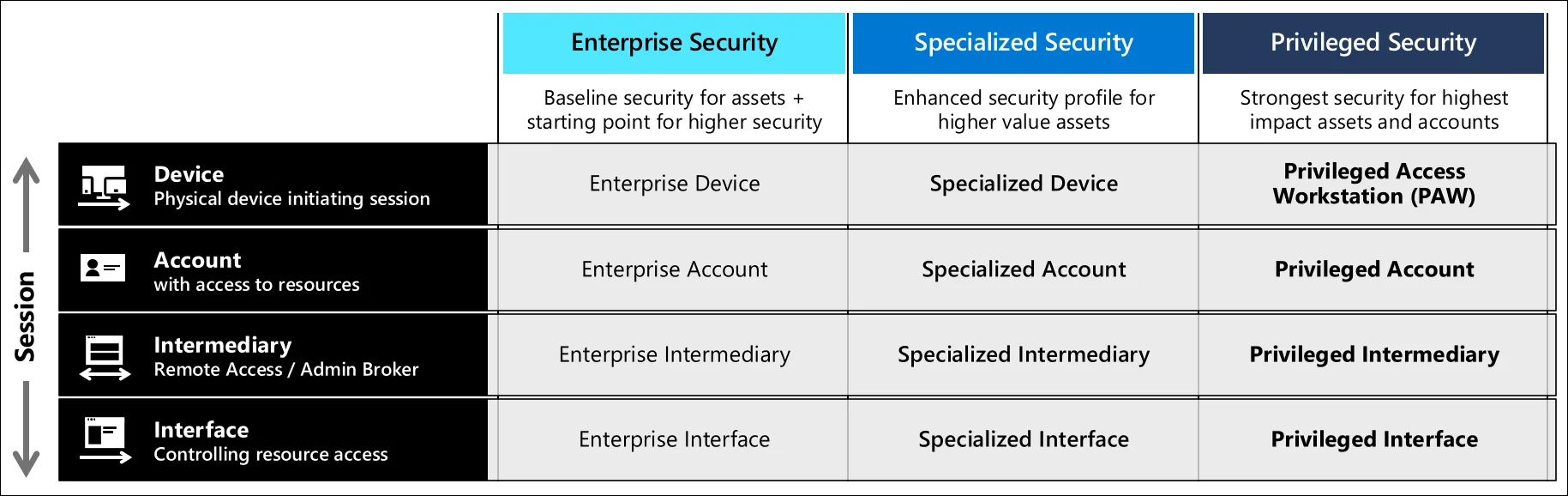
Back in the golden Active Directory days, logging into a domain controller from a compromised workstation was a real and common attack path. Pass-the-hash, credential dumping with Mimikatz, just a bad time all around.
Is the risk the same today? Not really. The credential harvesting techniques of the bronze age don’t plague us nearly as much today. Phishing-resistant MFA, token protection, conditional access evaluating device compliance all contribute to the fact that the attack surface has changed significantly.
Here’s my not so very hot take on this:
If you’ve done a threat model and the conclusion is that a compromised admin device could lead to catastrophic damage that you can’t recover from in some way, shape or form, invest in PAWs. Windows 365 Cloud PCs make this more accessible than dedicated hardware used to be. You can spin up a managed Cloud PC that serves as your admin workstation, managed by Intune, with all the compliance policies you want.
But if your threat model says the combination of phishing-resistant MFA, compliant device requirements and no standing privileges provides sufficient protection? Then maybe that budget is better spent elsewhere. It’s a business decision. Just make it an informed one.
I will use this point also to say that claiming you’ve followed Microsoft (or some MSSPs) best practice advice is not making an informed decision. Best practice is way too generic to work for everyone, and it requires you to actually do some thinking. I’m pretty confident that most risk taken in the security world today is taken by people who don’t understand even remotely what they are saying yes or no to.
A note on workload and agent identities
This entire post focuses on human privileged access, but as we established earlier, the principal-role-scope model doesn’t care whether the principal has a pulse. Service principals, managed identities and the emerging agent identity type all follow the same pattern, and they can accumulate equally dangerous permissions.
I’m not going to deep dive into non-human identity governance here (that’s its own post and others are way more into this than I am), but the short version is that we should apply the same thinking across all privileged access. Minimize risk, reduce attack surface, etc.
Prefer managed identities over secrets, scope permissions as tightly as possible, review what you’ve granted regularly, and don’t hand out *.ReadWrite.All application permissions like candy at Halloween.
For the full picture on securing workload identities, these are good starting points:
- Securing workload identities
- Best practices for app registrations
- Managed identities overview
- Conditional access for workload identities
Access reviews
Very briefly touching on access reviews as it can be quite cool, if someone actually follows up on them.
Set them up for your tier groups (where possible), at least quarterly for Tier 0 and Tier 1. The person who approved the access six months ago might have moved teams, the project might be done, or the role might no longer be needed. Access reviews force that conversation. Don’t skip this, or set the access reviews to take automatic action. Better someone on the workload team is a bit mad rather than having the normal active directory game of gathering the most amount of access simply by just existing and being employed in a company for a long time.
Monitoring
All of this setup is great for protection, but it’s worth very little if nobody’s watching. If you have Microsoft Sentinel (or another SIEM), the data you need lives in the AuditLogs table. The key events you want to track are:
| What | Where | Audit Category |
|---|---|---|
| PIM role activations | AuditLogs | RoleManagement |
| PIM group activations | AuditLogs | GroupManagement |
| Changes to PIM settings | AuditLogs | RoleManagement |
| Direct role assignments (outside PIM) | AuditLogs | RoleManagement |
| Group membership changes | AuditLogs | GroupManagement |
| RMAU membership changes | AuditLogs | AdministrativeUnit |
Some (very) simple starting queries:
PIM activations - who activated what and when:
AuditLogs
| where Category == "RoleManagement"
| where ActivityDisplayName has "Add member to role completed (PIM activation)"
| project TimeGenerated, InitiatedBy.user.userPrincipalName, ActivityDisplayName, TargetResources
Direct role assignments outside of PIM (this should rarely happen):
AuditLogs
| where Category == "RoleManagement"
| where ActivityDisplayName has "Add member to role"
| where ActivityDisplayName has "permanent"
| project TimeGenerated, InitiatedBy.user.userPrincipalName, ActivityDisplayName, TargetResources
Changes to PIM settings (someone lowering the bar?):
AuditLogs
| where Category == "RoleManagement"
| where ActivityDisplayName == "Update role setting in PIM"
| project TimeGenerated, InitiatedBy.user.userPrincipalName, ActivityDisplayName, TargetResources
Group membership changes for your tier groups:
AuditLogs
| where Category == "GroupManagement"
| where TargetResources has "<your-tier-group-name>"
| project TimeGenerated, InitiatedBy.user.userPrincipalName, ActivityDisplayName, TargetResources
You’ll have to dig a bit into the TargetResources to make sense of what’s going on, but it’s a starting point if nothing else.
For the full list of PIM audit activities, check the audit log reference. Microsoft also provides Sentinel templates for some of these scenarios. Do remember do modify these a bit to fit your environment!
If you want to read more on detection engineering, please check out my blog on practical detection engineering for a good starting point. Testing in production is also something we should do early with detections, which I’ve written a bit about here.
At a minimum I would advise to alert on PIM setting changes, direct role assignments outside of PIM, break glass account sign-ins, and RMAU modifications. Everything else is nice to have for dashboarding and investigation.
Putting it all together
Let’s zoom out and see how the pieces fit together:
flowchart TB
    subgraph accounts["Identity Layer"]
        direction LR
        Normal["user@infernux.no<br/>Email, Teams, daily work"]:::normal
        Admin["adm.user@infernux.no<br/>Azure, Entra, DevOps"]:::admin
        BG["break.glass@infernux.no<br/>Emergency only"]:::bg
    end

    subgraph ca["Conditional Access"]
        direction LR
        CA1["Normal: MFA + compliant"]:::canorm
        CA2["Admin: Phishing-resistant MFA + compliant + admin portals"]:::caadmin
        CA3["Break glass: Excluded from most CA's, monitored"]:::cabg
    end

    subgraph tiers["Privileged Role Groups"]
        direction LR
        T0["Tier 0<br/>RMAU protected<br/>GA/PRA only"]:::t0
        T1["Tier 1-2<br/>Access packages<br/>Approval required"]:::t1
    end

    subgraph daily["Daily Access Groups"]
        direction LR
        DG["TeamX-DailyAccess<br/>PIM for Groups<br/>Self-activation"]:::daily
    end

    subgraph monitor["Monitoring"]
        direction LR
        M["Sentinel<br/>AuditLogs"]:::monitor
    end

    Admin --> ca
    Admin --> tiers
    Admin --> daily
    tiers --> monitor
    daily --> monitor

    classDef normal fill:#4a90d9,color:#fff,stroke:#2d6cb4
    classDef admin fill:#c0392b,color:#fff,stroke:#962d22
    classDef bg fill:#2c3e50,color:#fff,stroke:#1a252f
    classDef canorm fill:#5ba55b,color:#fff,stroke:#3d7a3d
    classDef caadmin fill:#d4a847,color:#fff,stroke:#b08a2e
    classDef cabg fill:#7f8c8d,color:#fff,stroke:#5f6b6c
    classDef t0 fill:#6c3483,color:#fff,stroke:#4a235a
    classDef t1 fill:#d4a847,color:#fff,stroke:#b08a2e
    classDef daily fill:#4a90d9,color:#fff,stroke:#2d6cb4
    classDef monitor fill:#1a5276,color:#fff,stroke:#0e3450
Wrapping up the burrito
There’s no one-size-fits-all for privileged access. What I’ve tried to lay out here is a pragmatic approach that covers the important bits:
- Separate accounts for admin work and “normal” human actions like teams and outlook tasks. Different conditional access policies for different risk levels.
- Group-based role assignment using role-assignable groups with eligible PIM assignments. No ad hoc role assignments to individuals.
- Tier your roles based on your own threat model. Protect Tier 0 with RMAUs, use access packages for Tier 1-2.
- Daily access groups to reduce PIM burnout. One activation for everything you need for your regular work.
- Break glass accounts with permanent Global Admin. Excluded from most CA’s (should have FIDO2 or similar based on MS best practice), monitored like hawks (caw caw).
- Monitor everything. PIM activations, group changes, direct assignments, RMAU modifications.
Is this the Microsoft best practice guidance to the letter? No. Will some security architects reading this find things to disagree with? Probably, we are big fans of discussing technology after all. But in my experience having a good baseline you can actually implement beats doing nothing 100% of the time.
Sources
- What is Azure RBAC?
- What is Microsoft Entra PIM?
- PIM for Groups
- Restricted management administrative units
- Privileged roles and permissions in Entra ID
- Conditional access: Require phishing-resistant MFA for admins
- Conditional access: Require MFA for admin portals
- Emergency access accounts
- Entitlement management overview
- Privileged access workstations deployment
- Security operations for PIM
- Audit log reference for PIM activities
- Microsoft Graph permissions reference